Open a task, and the work is already in it
A task now arrives with the letter written, the number dialable and the buttons in place — plus ⌘K to jump anywhere and a handful of keys that keep your hands where they are.


You know the task list on a Friday afternoon. Eleven items, each one a sentence and a checkbox. Decide disposition for Roy Schouten. Contact Jacqueline about her availability. Prepare for the interview with Marcel.
Every one of those sentences is really an instruction to go and find something. Roy, then the job he applied for, then the right rejection letter, then somewhere to write it. By the time you have four tabs open you have forgotten which of the eleven you were doing.
The work was never the hard part. The gathering was. With today’s release, a task arrives with everything it needs already in it.
Why the task, and not a link to the task
The cheap version of this is a link. Put “Roy Schouten” in the task as a hyperlink, let it open his profile, and call it solved.
We built something else, because a link is not the work — it is one more place to go. The point of a task is that somebody decided something should happen. Everything needed to make it happen should be on that page, in reach, the moment it opens.
So Selectify reads what kind of task it is and brings the right things with it. Eleven kinds, each with its own idea of what “ready” means. A rejection opens with the letter already chosen — the one for after a first screening, or the one for after meeting the team, because those are not the same letter. A call opens with the number as a real link you can press on your phone, shown the way you would read it aloud rather than as +31 6…. A disposition opens with the buttons that move somebody forward or close them out.
Your letters, your database, your candidate relationships — you already built all of it. The task simply stops making you go and fetch it.
How it works
Open Tasks in the main menu and pick anything. What you see depends on the task: contact details and a Call button on a call, a Message pane on a rejection with the letter loaded and your sign-off already on it.
The letter is a draft. Selectify writes it and can rewrite it for this particular candidate, but nothing leaves the building until you press send yourself — we draft, you decide.
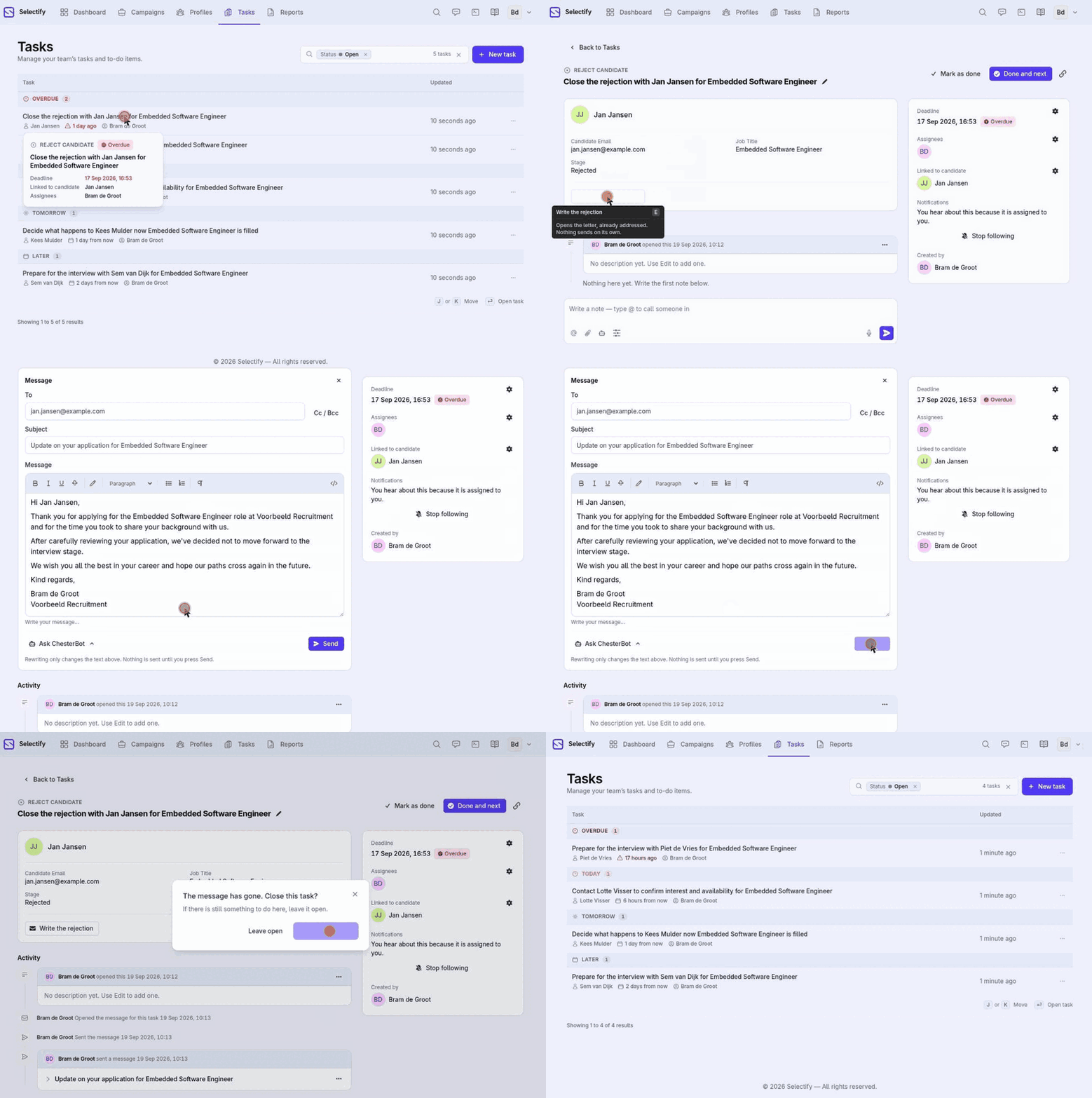
Underneath the task is a timeline: what happened, who did it, and any note anyone added. A task is where the hand-off happens when somebody is on holiday and a colleague picks it up.
Then there are the keys. Press ⌘K (or Ctrl+K) anywhere in Selectify and search campaigns, candidates, tasks, people and the manual from one box — it answers even while you are typing in a field, because that is exactly when you want it. On the task list, j and k move, Enter opens, c marks done. Inside a task, e opens the message pane and Esc closes.
Press ? at any time and Selectify shows you the keys that work where you are standing. Nothing to memorise up front.
Why this matters for you
- The context comes to you. The letter, the number, the buttons and the history are on the page you already opened.
- Your own words, ready to go. Rejection letters follow your templates and carry your sign-off — the task picks the right one for the stage.
- You keep control of what goes out. Drafts are drafts. A message is sent when you press send, never before.
- A colleague can pick it up. The timeline explains what happened, so a task handed over mid-week still makes sense.
- Your hands stay where they are. ⌘K and five keys cover most of a Friday afternoon. Everything still has a button too.
A real example
Bram runs recruitment at a 25-person agency. Friday, half past four, eleven open tasks. Four of them are rejections, and each one used to mean finding the candidate, checking how far they got, opening the right template and writing the note — about six minutes each, and the last two usually slid into Monday.
Now he presses ⌘K, types three letters of the candidate’s name, and lands on the task. The letter is there, matched to the stage they reached, signed off in his name. He reads it, changes a line, sends. c marks it done and he is on the next one. All four are finished before five, and the ones he handed to a colleague carry the note explaining why.
Where to find it
Tasks in the main menu, or press ⌘K from anywhere and start typing. The keyboard shortcuts work on the task list and inside a task; ? shows you which ones apply. Everything here is available on every plan.
Have a look at your own list on Monday — it should be a shorter afternoon.