Selectify data in Power BI, Excel and Qlik
One token, one URL — Selectify connects directly to the tool your team already uses, with automatic updates and not a line of code.

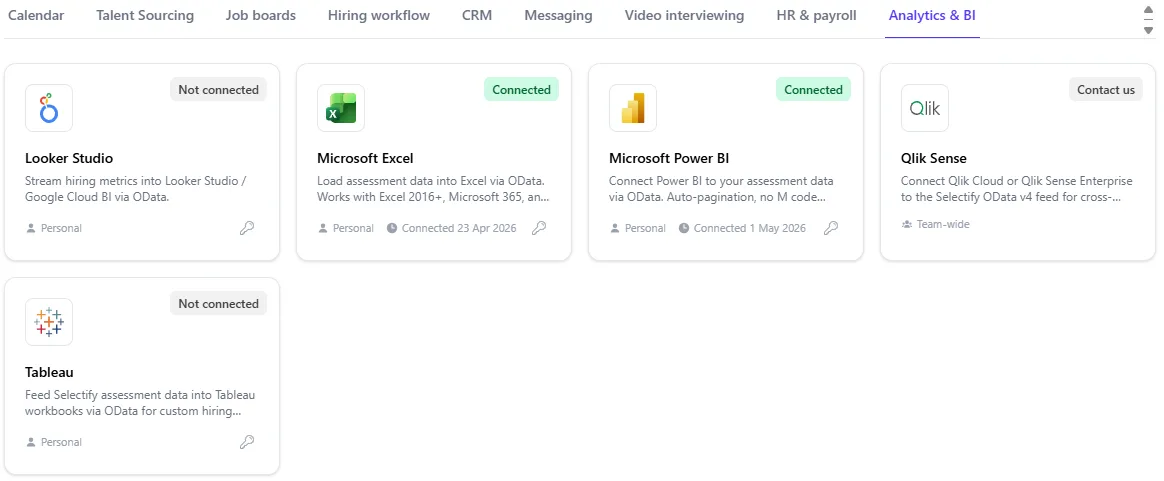
Most companies don’t do their reporting in their ATS. Finance, leadership and operations work in Power BI, Excel or Qlik — that’s where the company’s numbers come together. Recruitment numbers, on the other hand, tend to live in a different tab.
The result is the Monday-morning ritual every recruiter knows: export the data, open Excel, copy-paste (and type a bit extra), save, refresh the report, send the link. The same ritual every time — and then something shifts in the report and the numbers end up in the wrong place.
That ritual is no longer needed. Selectify now serves your data through an OData v4 feed that Power BI, Excel, Qlik and other tools understand out of the box.
Why a feed, not an export
We could have shipped an “Export to Excel” button and left it at that. We didn’t, for the same reason embedded reporting is a feature and not a CSV: the moment data leaves the system, it stops being live.
CSV data is a snapshot — by the time the file is saved, the numbers are already out of date. The only fix is to do the whole dance over again.
A feed works differently. The dashboard connects to Selectify, fetches the latest data, and updates itself. You set up the connection once, and the report you built last quarter still shows the right numbers six months from now without anyone touching it.
How it works
In Selectify, go to Settings → Integrations, find the card for your tool and create a token. Copy it, and paste this URL into the tool of your choice:
https://getselectify.io/api/v1/odata?token=<your token>
Done. Your reporting tool discovers the schema automatically, processes every record, and schedules its own refreshes. No complicated code, no queries to write, no manual fiddling.
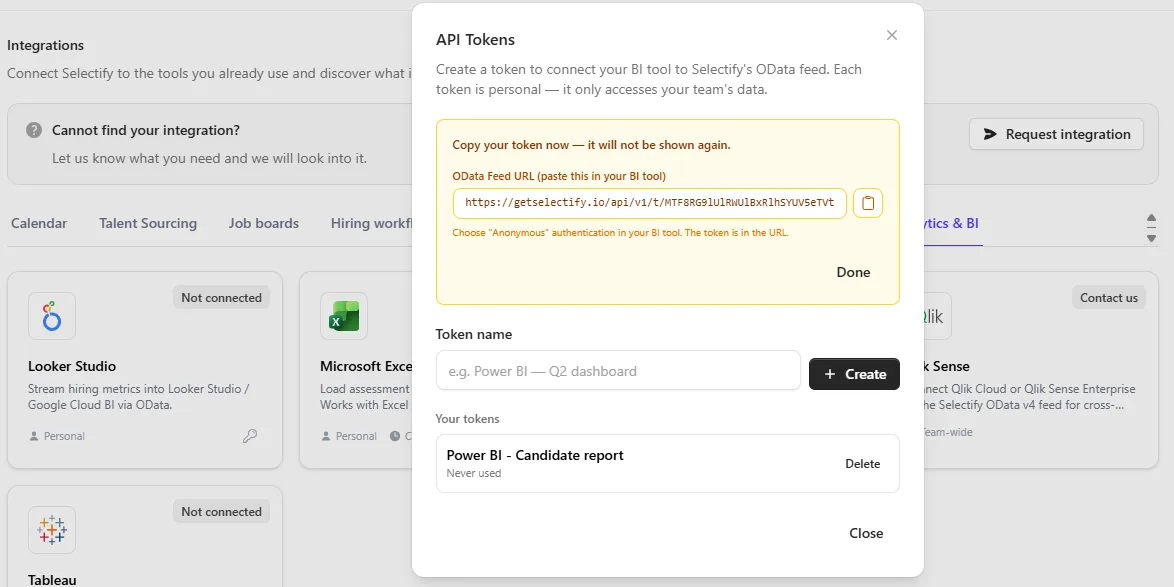
The same URL works in Excel (Data → Get Data → From OData Feed), Qlik Sense (OData or REST connector), Tableau and Looker Studio.
Why this matters for you
- Your reporting stays the same. Whatever the rest of the business uses for KPIs, the recruitment numbers now sit alongside them — same dashboards, same colours, same audience.
- No more weekly CSV ritual. Schedule the refresh of your data and the Monday update writes itself.
- One token per dashboard. When a dashboard is retired, you revoke the token and refreshing stops — no forgotten exports floating around on shared drives.
A real-world example
Hannah runs talent at a 30-person agency. Her director opens the same Power BI dashboard every Monday morning at 9:00 — pipeline value, revenue, and (from now on) the data on all open jobs.
Before, that meant: Hannah had a recurring calendar block to update the spreadsheet that fed the dashboard. If she was on holiday, someone else had to remember.
From today: the dashboard refreshes itself. Hannah’s calendar block is gone. As soon as the dashboard is opened, you see the current recruitment data right next to last week’s revenue. If Hannah is on holiday, the reporting simply keeps running.
Where to find it
From the main menu, go to Settings → Integrations and look at the cards on the Analytics & BI tab. Each card has its own token list, so you can keep dashboards tidy and revoke tokens individually.
You’ll find more information in the manual under BI Integrations & Data API.